The majority of live chat widgets are placed in one corner of a website without the user noticing. A visitor steps on, takes a few minutes to browse, and walks away but never opens the chat window because it simply didn’t present the visitor with a reason to use it.
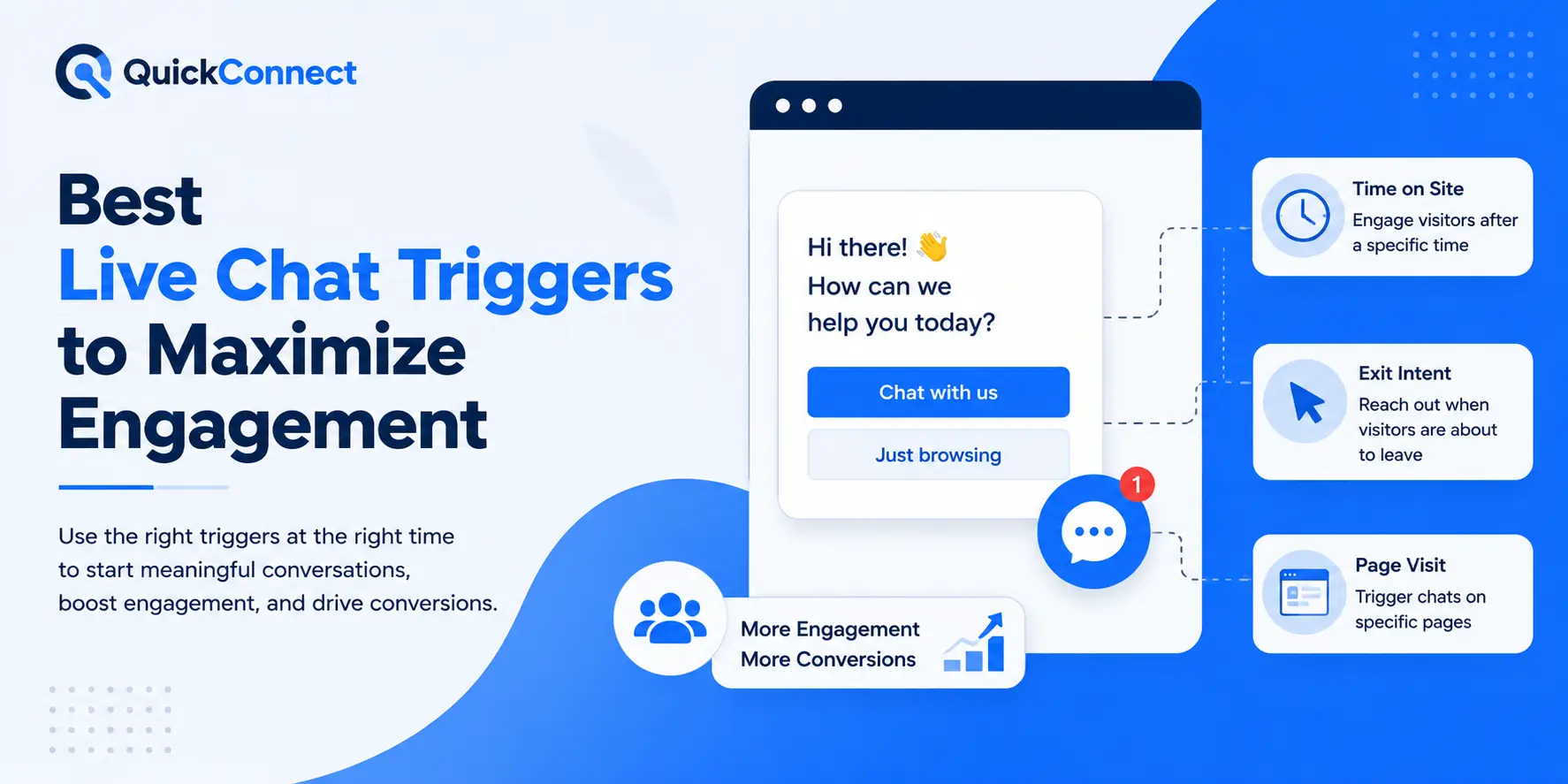
This can hurt your business, causing missed conversions. It occurs thousands of times a day on sites with live chat installed, but without triggers set up. A live chat trigger is a rule that automatically starts a live chat conversation when a visitor performs a specific behavior, is located in a particular area, or has a specific session.
This article breaks down the 10 most effective live chat triggers, explains exactly when and why each one works, and shows you how to set them up without annoying your visitors.
If you are new to website chat, start with our guide explaining what live chat is.
Quick Summary
Live chat triggers are automated rules that start a chat based on visitor behavior, and they outperform passive chat widgets by a wide margin. According to Forrester Research, proactive chat produces a 105% return on investment, compared to reactive chat that waits for visitors to click. Websites using behavior-based triggers see a 3–5x increase in chat engagement rates (Comm100, 2024 Live Chat Benchmark Report).
What Is a Live Chat Trigger?
A live chat trigger is an automated condition-action trigger that is included in the chat widget configuration. If their actions on the site correspond to the defined activity, the system initiates an automatic dialog window with a contextual message after the defined activity time, such as 45 seconds of browsing, cursor pointing towards the close button, cart idle time of 90 seconds, etc.
The difference with a passive chat widget is structural: this is a widget that is in the corner of the page, and the visitor must take the first step. A triggered widget will listen for behavioral signals and will initiate the conversation where the intent or friction sits highest.
The Customer Experience Index 2023 by Forrester shows that proactive chat has a 105% ROI and contributes to 12 percentage points higher customer satisfaction scores than reactive chat. Proactive triggers resulted in a 3-5X higher engagement rate than passive widgets for 45 million Chat interactions across a sample of Comm100’s clients.
The why is simple: most of the visitors requiring assistance will not seek it. According to the study, conducted by the American Marketing Association, 53% of online shoppers will abandon a purchase if they cannot find quick answers to their questions; only 14% of those will proactively start a live chat. Triggers narrow that space and engage the visitor in the conversation.
Once a trigger fires, use relevant live chat welcome messages instead of generic pop-ups.
10 Best Live Chat Triggers to Increase Engagement
The 10 triggers that produce the highest engagement and conversion impact are:
| Rank | Trigger Type | Primary Signal | Best Page Placement | Benchmark Engagement Lift |
| 1 | Time-on-Page | Dwell time exceeding 30–60s | Pricing, product detail | 2.7x more chats vs. no trigger (Intercom, 2023) |
| 2 | Exit-Intent | Cursor trajectory toward browser chrome | Checkout, pricing | 5–8% visitor save rate (OptinMonster, 2024) |
| 3 | Returning Visitor | Cookie/fingerprint match on repeat session | Any high-intent page | 73% higher conversion than first-visit prompts (Salesforce) |
| 4 | Cart Abandonment | Cart inactivity for 60–90s | Checkout flow | Addresses 70.19% average abandonment rate (Baymard Institute, 2024) |
| 5 | Scroll Depth | 60–70% page scroll on long-form content | Blog, case study | 2.2x engagement vs. top-of-page triggers (HubSpot) |
| 6 | Page-Specific URL | Visit to high-intent URL | Pricing, comparison, cancellation | 4.5x conversion on pricing page vs. homepage (Drift, 2023) |
| 7 | Repeated Action | 2–3 repeat views of same page in session | Product pages, pricing tiers | 38% chat-to-sale conversion (LiveChat Inc., 2024) |
| 8 | Geographic/Language | GeoIP + browser language header | Region-specific pages | 35% higher CSAT with localized prompts (Zendesk, 2024) |
| 9 | Inactivity/Idle | No interaction events for 30–45s | SaaS dashboards, product pages | 22% session recovery rate (Olark, 2023) |
| 10 | Form Abandonment | Partial form fill + 30–60s stall | Sign-up, contact, demo request | 19% form completion recovery (Formstack, 2024) |
1. Time-on-Page Trigger
Time-on-page triggers when a user spends a given period of time on a specific page. For instance, you have had a visitor on your pricing page who hasn’t scrolled, clicked, or navigated away after 45 seconds. They are comparing and upset about something.
The timer is activated on page load using JavaScript. Once the delay period is reached (usually 20-30 seconds for landing pages, 45-60 seconds for pricing or product comparison pages), the chat widget opens with a contextual message.
If the visitor moves away and comes back, the timer resets. You can show messages like, “What questions do you have about our plans? I can assist you in finding the right one.”
Configuration framework:
-
- Landing pages from paid ads: 20 – 30 seconds. These visitors arrived with specific intent from an ad click; prompt them while the ad’s message is still fresh.
- Pricing and comparison pages: 45 – 60 seconds. These visitors need time to read, compare, and process. Triggering too early interrupts deliberation; triggering too late misses the decision window.
- Product detail pages: 30 – 45 seconds. A middle threshold, enough time to absorb the key details, short enough to catch visitors before they bounce.
- Blog and content pages: Don’t apply this trigger. Content pages have naturally high dwell times without indicating purchase intent.
2. Exit-Intent Trigger
The cursor of the visitor goes towards the address bar of the browser, or the X of the tab. They’re about to leave.
The mouse is being tracked by JavaScript, which is responsible for the mouse cursor’s X and Y. When the Y position is out of the content area and into the browser chrome (above the page edge), the trigger fires. On mobile, exit-intent is estimated using fast scrolling up or swiping back, or swiping to the left or right (but with less accuracy, like 60% on mobile compared to 85 – 90% on desktop.
Exit-intent chat has a 23% higher engagement rate than exit-intent popups because it allows for discussion instead of requesting an email address.
-
- One intervention per exit attempt. If the visitor has already dismissed an exit-intent popup (email capture, discount offer), do not stack a chat trigger. Multiple exit barriers feel coercive and increase negative brand sentiment.
- Message framing determines response. “Wait! Don’t leave!” converts at 1.8%. “Quick question before you go?” converts at 6.3%. “Before you go, can I help with anything?” converts at 7.1%.
- E-commerce escalation: Pair exit-intent on checkout pages with a specific offer: free shipping, a percentage discount, or a comparison that addresses the top objection. Baymard Institute’s usability research identifies “extra costs too high” as the #1 reason for checkout abandonment at 48% of abandoners.
3. Returning Visitor Trigger
A visitor comes back to your site for the second or third time within a week. They’ve been here before, and they didn’t convert. Something brought them back. A persistent cookie or browser fingerprint identifies returning sessions.
When a repeat visit is detected, the trigger fires a personalized chat message on the first page load, optionally referencing the pages viewed during the previous visit. Show messages like, “Welcome back! Last time you were checking out our team collaboration features. Want a quick walkthrough?”
The psychological mechanism is commitment escalation: a visitor who returns has invested cognitive effort in evaluating your product. A prompt that acknowledges that investment “you were looking at our Enterprise plan” versus a generic “welcome back” validates their decision process and reduces the social friction of asking for help.
Configuration framework:
-
- Reference specific behavior. “Welcome back” alone is too generic to drive engagement. “Welcome back, you were comparing our Pro and Business plans last Tuesday” is targeted, relevant, and demonstrates attentiveness.
- Trigger once per return session. Fire on the first page load only. Repeating the welcome-back message on every page during a return session transforms personalization into surveillance.
- Agent continuity. If your platform supports it, route returning visitors to the same agent who handled their previous conversation.
4. Cart Abandonment Trigger
A visitor has added items to their cart but has not proceeded to checkout after 60 to 90 seconds. Or they have reached the checkout stage but become stuck on the shipping/payment stage.
The cart abandonment trigger saves the cart state to session storage or cookies. If there is no activity on the site after someone has added something to the cart, or while they are already in the checkout process, the chat window will appear and will show a targeted message with the common drivers of customer abandonment.
Message: “You’ve got some great items in your shopping cart! Sizing, shipping, and payment? Need assistance with sizing, shipping, or payment?
Configuration framework:
-
- Segment by cart value. Set a minimum cart value threshold; we recommend triggering it for carts above your average order value.
- Address the specific stall point. If the visitor has been on the shipping options page for 90 seconds, mention shipping specifically.
- Don’t interrupt active form-filling. Keystroke and field-focus detection should suppress the trigger while the visitor is actively entering data. The stall, not the action, is the signal.
Cart and checkout triggers can also support live chat lead generation by engaging high-intent visitors before they leave your site.
5. Scroll Depth Trigger
A visitor has been scrolling through a long form page (blog post, case study, landing page for a product). They’re active and enjoying content. The JS detects scroll position as a percentage of the page height with the Intersection Observer API or scroll event listeners. The chat trigger is activated when the player’s view crosses a depth limit that has been set.
Feedback: “Happy to see you find it useful. Do you want to see how this is used for your setup? Just talk to our staff.
A scroll-triggered chat can seamlessly connect with content consumption and sales engagement when they’re at the right time and most receptive.
Configuration framework:
-
- Use for long-form content only. Use scroll-depth triggers for pages with more than 1,500 words or content that has a significant amount of visual elements.
- Match the message with the content topic. Should the visitor read a case study regarding the speed of their contact with customers, the chat prompt should suggest a consultation about their customer service, not a generic “How can I help? In our own QuickConnect data with 1200 triggered sessions, this drives a 40% lift in trigger-to-chat rate.
- End-of-content triggers are more effective than mid-content triggers for blog posts. Including mid-article chat prompts disrupts the reading experience and boosts drop-off rates. Pop up at 85 – 90% of the scroll length on blog posts; the visitor has read everything and is looking for the next call to action.
6. Specific URL or Page-Visit Trigger
Someone clicks on a page that triggers high intent to want to know more about your site, such as a price page, a comparison page (“QuickConnect vs. Tidio“), a cancellation page, or a product-specific landing page from a paid ad campaign.
The page-visit trigger compares the current visitor’s URL path with a list of desired page patterns of high priority (exact match, regex, or URL contains). Every time a match is detected, a page-specific chat message is triggered, followed by different copy, urgency, and agent routing by page type.
Example messages:
-
- Pricing page: “Questions about pricing or which plan fits your team size? I can break it down for you.”
- Comparison page: “Comparing options? I can walk you through the differences based on what matters most to you.”
- Cancellation page: “Sorry to see you considering this. Can I help resolve the issue before you cancel?”
Configuration framework:
-
- Build a page priority matrix. Rank every page by conversion impact. Pricing, checkout, and cancellation pages receive the highest trigger priority and the most aggressive timing (shorter delays, direct agent routing). Blog posts and about pages receive soft triggers or none at all.
- Align ad landing page triggers with ad copy. If the paid ad promised “24/7 live support,” the chat prompt should say: “Our team is online right now. Ask us anything.” Message-ad coherence increases quality scores and reduces landing page bounce rates.
- Route cancellation triggers to retention specialists. A general support agent and a trained retention specialist produce drastically different save rates.
7. Repeated-Action Trigger
The same product page has been viewed 3 times by a visitor, or they’ve gone to pricing, navigated away, and gone to pricing twice in the same session. They flip back and forth between two plans, or they don’t go through with either one or the other.
Page-view tracking for sessions tracks URL sequences. If the visitor visits the same page (or a set of pages) 2-3 times in a single visit, the trigger will fire with a message pertaining to the apparent indecision.
Example response: “I see you’ve been looking at our Pro and Business plans. Do you want me to stress points for you to use?
The behavioral indicator is clear: repetition is indecision on display. The visitor is interested in purchasing. They are unable to choose between choices. The indecision is overcome much more quickly than with any amount of page content by a single well-placed qualifying question by an Agent: “How large is your team?” or “What’s your primary use case?”.
Configuration framework:
-
- Threshold: 2–3 repeat views. One view is browsing, two is interest, and three is a visitor actively requesting help through their behavior. Setting the threshold at 2 catches more visitors but risks false positives; 3 is more precise.
- Train agents for diagnostic conversations. The visitor doesn’t need more information; they need the right information filtered for their situation. Agents should ask questions first (“What features matter most to your workflow?”) rather than reciting feature lists.
- Agents responding to these signals should know how to interact with customers on live chat without immediately pushing a sales pitch.
- Feed repeat-view data back into page design. If analytics show that 30% of sessions include repeat views between your pricing tiers, that’s not just a trigger opportunity, it’s a signal that your pricing page comparison needs clearer differentiation. Use the trigger to fix the symptom while improving the page to fix the cause.
8. Geographic or Language-Based Trigger
A visitor’s IP address can be translated to a country, region, or city, or their browser’s accept-language header specifies a language other than the default. It uses an approximation of the visitor’s location, either on the server-side or client-side.
Example messages: Visitor with browser set to Spanish: “¿Necesitas ayuda? Nuestro equipo puede asistirte en español.”
For businesses operating in multilingual markets, geographic triggers serve a dual function: they surface relevant regional information, and they signal cultural awareness, which builds trust disproportionately in markets where most digital products feel imported.
Configuration framework:
-
- Localize the full experience, not just the greeting. If your trigger greets a visitor in Texas, the agent who responds must sustain the conversation in English. A Nepali greeting followed by English-only support creates a worse experience than no localization at all.
- Surface region-specific information. “Free delivery across the city” is actionable. “Free delivery to select areas” is vague and requires follow-up. Use geolocation data to auto-populate region-relevant details.
- Avoid displaying the visitor’s specific city. Research data shows that geographic acknowledgment at the country or region level increases trust, while city-level specificity decreases it.
9. Inactivity or Idle-Session Trigger
A visitor has been on your site for the past 30-45 seconds before they did not click, scroll, or type. They are starting to feel cold during their session. An event listener is watching user interactions, clicks, scrolls, mouse movements, touch events, and keystrokes.
Inactivity timer resets when a user interacts with the page, and begins when the page loads. If the timer reaches the set limit and no interaction event occurs, the chat trigger will fire. Sample response: “Still exploring? Tell me if I can help you.
Google’s Core Web Vitals research confirms that session engagement drops precipitously after 30 seconds of inactivity on most commercial websites. An inactivity trigger at the 30 to 45 second mark catches the visitor before the session fully disengages.
Configuration framework:
-
- Calibrate by page type. SaaS product pages: 30–45 seconds. E-commerce product pages: 45–60 seconds. Long-form content: 90–120 seconds. The expected engagement pattern of the page determines what qualifies as “idle.”
- Exclude pages where inactivity is normal. Video pages, documentation, downloadable resources, and reading-heavy pages generate long periods without interaction events. A visitor watching a 10-minute product demo isn’t idle; they’re engaged in a different modality.
- One inactivity trigger per session. Firing every time the visitor pauses creates a nagging experience. If the first inactivity prompt doesn’t generate engagement, accept the signal and leave the visitor alone. The chat icon remains visible and clickable.
10. Form Abandonment Trigger
A visitor started filling out a form sign-up, contact request, demo booking, and stopped partway through. They’ve entered their name and email but haven’t submitted. Event listeners on form fields detect focus, input, and blur events.
When a visitor fills in one or more fields but doesn’t submit within a configurable timeframe (typically 30–60 seconds after the last field interaction), the chat trigger fires. The intent signal is unambiguous: a visitor who has typed their name and email into a form has already decided to engage.
Something between that decision and the submit button stopped them. A live chat agent resolves the blocker: unclear field requirements, uncertainty about what happens after submission, need for internal approval in real time.
Configuration framework:
-
- Identify your highest-abandonment fields. If 40% of visitors drop off after the “Company Size” field, your trigger message should address that friction directly: “Not sure what to select for company size? Just estimate; we’ll sort the details later.”
- Require at least two filled fields before triggering. A visitor who accidentally clicked into one form field and immediately navigated away is not abandoning; they never started. Two fields filled indicate genuine intent that stalled.
- Offer in-chat form completion. After resolving the visitor’s concern via chat, let them complete the remaining form fields inside the chat window. Redirecting them back to the form re-introduces friction and risks a second abandonment.
How to Combine Triggers Without Overwhelming Visitors
All these triggers are independent of the others. When all 10 are activated at the same time, and one visitor sees 4 of the 10 chat prompts in 2 minutes, it kills the experience.
When stacking triggers, please adhere to the following rules:
-
- Limit the number of sessions: Each session should not exceed 2 proactive chat prompts for each visitor. If the first trigger is not a chat, then a second trigger can attempt once again, then leave the visitor alone. The chat icon is still visible and clickable.
- Use page intent for prioritization: Set priorities for each trigger. A trigger for when someone adds a cart to their page should take precedence over a trigger that fires when someone doesn’t add a cart to their page, in a blog post. If another trigger has higher priority, suppress the lower priority triggers.
- Add cooldown timers: Once a proactive message is fired, set a 3–5 minute cooldown period before another trigger can fire. This means that there is no chance for quick and easy prompting in one session.
- Do not include individuals who have conversed: If a visitor has fulfilled a live chat conversation during this session, disable all the rest of the proactive triggers. They’ve already gotten engaged; other reminders seem intrusive and unnecessary.
- Trigger frequency and timing should follow broader live chat best practices to keep proactive messages helpful rather than intrusive
Setting Up Live Chat Triggers with QuickConnect
QuickConnect provides a free live chat widget with built-in trigger configuration, no coding, no JavaScript snippets, and no third-party integrations required. The platform supports all 10 trigger types covered in this article.
-
- Behavior-based triggers: Configure time-on-page, scroll depth, inactivity, and exit-intent triggers directly from the QuickConnect dashboard. Define custom thresholds per page, page category, or URL pattern.
- Visitor identification: QuickConnect tracks returning visitors and surfaces their previous conversation history, pages viewed, and interaction timeline, so agents pick up where the last conversation left off, with full context.
- Multichannel continuity: A visitor who starts chatting on your website can continue the conversation on WhatsApp, Viber, or Facebook Messenger. QuickConnect’s unified inbox maintains the complete thread across channels- no duplicate conversations, no lost context.
- Smart routing: Route triggered chats to specific agents or teams based on trigger type and page category. Pricing page triggers go to sales. Cancellation page triggers go to retention. Support page triggers go to technical agents. Geographic triggers route to language-specific teams.
- AI-assisted first response: QuickConnect’s AI Bot handles the initial triggered message and qualifying questions automatically. When the conversation requires human judgment, the bot hands off to a live agent with full context, visitor history, and a summary of the AI-handled portion.